lunedì 3 marzo 2014

Oracle Tip: Changing SQL Developer Interface Language

By default, the SQL Developer installation gets your local settings when deciding which language to use. In my case it's Spanish and I must say that Spanish translations are pretty embarassing.
That's why I decided to change my installation to English.
To achieve that, locate your sqldeveloper.conf file. I have it in:

C:\<Installation_Path>\sqldeveloper-4.0.1.14.48-x64\sqldeveloper\sqldeveloper\bin

and open it. Add the following line:

AddVMOption -Duser.language=en

  
and restart the program.

Oracle Tip: Comment SQL Code in SQL Developer

When working with PL/SQL procedures, you'll have to comment (and uncomment) frequently part of the code.
A quick way to do it with Oracle SQL Developer is selecting the block of code you want to comment and use the shortcut:

Ctrl + '/'(slash)

Alternatively, you can choose the option 'Toggle Line Comments' from the menu 'Source' (in version 4 and above of SQL Developer). In previous versions, use the menu 'Edit -> Source'.

To remove comments, just use the same command.

venerdì 13 dicembre 2013

Oracle Tip: Image Processing in Oracle 11g

There are many ways to store images in Oracle DB. The most common manner is to store images as binary content in BLOB columns.
Starting from version 11g, Oracle introduced Oracle Multimedia (previously known as Oracle interMedia), a feature for storing images, audio, video and other multimedia data.
Oracle Multimedia introduced ORDAudio, ORDDoc, ORDImage, ORDVideo, and SI_StillImage data types and method for:
  • extracting metadata and attributes from multimedia content
  • embedding metadata generated for other application into images
  • embedding multimedia data from Oracle Multimedia, Web servers, file systems, and other servers
  • editing and transforming images
In this post, I will focus on the transformations you can apply to image data.
We start creating a table for storing a TIFF image.

CREATE TABLE AVT_IMG
(
ID NUMBER,
TIFF_IMG ORDSYS.ORDImage
);
 
We also create a database directory to the path where we store the images to be loaded into the DB.

CREATE OR REPLACE DIRECTORY avt_img_dir as 'C:\Imagenes_Blog';


We instanciate an object ORDImage and we load the TIFF image in the table AVT_IMG.

-- ORDImage.init()
INSERT INTO AVT_IMG VALUES(1,ORDImage.init());
COMMIT;
-- Load the image
DECLARE
obj ORDSYS.ORDImage;
ctx RAW(64) := NULL;
BEGIN
-- The import() method also sets the object properties by reading the image blob.
select TIFF_IMG into obj
from AVT_IMG
where ID = 1 for update;

obj.setSource('FILE', 'AVT_IMG_DIR', 'flowers.tif');
obj.import(ctx);
update AVT_IMG set TIFF_IMG = obj where id = 1;
commit;
END;
/
 
Using ORDSYS.ORDImage methods, we can read image properties:

DECLARE
image ORDSYS.ORDImage;
compression_format VARCHAR2(4000);
img_height NUMBER;
img_width NUMBER;
content_size NUMBER;
metav XMLSequenceType;
properties_match BOOLEAN;
BEGIN
-- Load the image into a variable
SELECT TIFF_IMG INTO image FROM AVT_IMG
WHERE ID=1;
-- Check if properties are readable
properties_match := image.checkProperties();
IF properties_match THEN
DBMS_OUTPUT.PUT_LINE('Check Properties succeeded');
ELSE
DBMS_OUTPUT.PUT_LINE('Check Properties failed');
END IF;
-- Read image properties
compression_format := image.getCompressionFormat();
img_height := image.getHeight();
img_width := image.getWidth();
content_size := image.getContentLength();
DBMS_OUTPUT.PUT_LINE('Compression Format: ' || compression_format);
DBMS_OUTPUT.PUT_LINE('Height: ' || img_height);
DBMS_OUTPUT.PUT_LINE('Width: ' || img_width);
DBMS_OUTPUT.PUT_LINE('Size: ' || content_size);
COMMIT;
END;
/
 
The result is:


and it matches with the image we are using as an example.


Let's alter the table as follows:
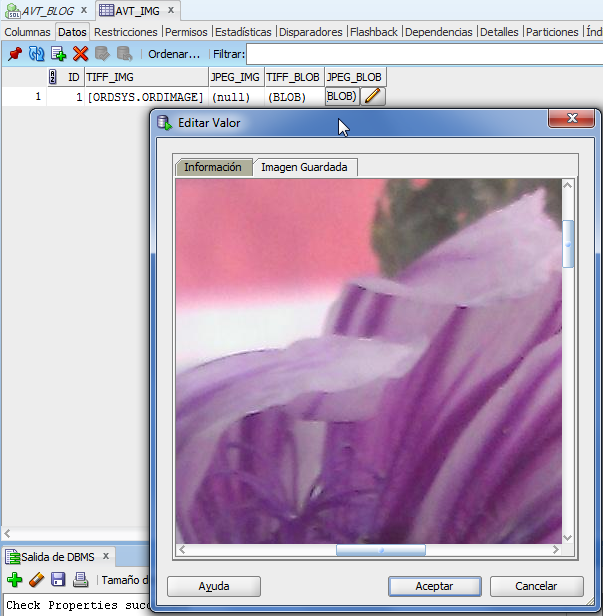
ALTER TABLE AVT_IMG ADD (JPEG_IMG ORDSYS.ORDImage, TIFF_BLOB BLOB, JPEG_BLOB BLOB);
for storing TIFF_IMG BLOB content (without metadata) and its copy in JPEG format.
The method getContent() extracts the image BLOB content.

UPDATE AVT_IMG
SET TIFF_BLOB =  ordsys.ordimage.getContent(TIFF_IMG);
COMMIT;
 
To change the image format, for instance from TIFF to JPEG, we can use the method processCopy().
DECLARE
imgTiff blob;
imgJpeg blob;
BEGIN
UPDATE AVT_IMG SET JPEG_BLOB = empty_blob()
RETURNING TIFF_BLOB, JPEG_BLOB
INTO imgTiff, imgJpeg;
-- processCopy() method gets the following parameters: 
-- * Source file
-- * Parameter string
-- * Destination file
ordsys.ordimage.processCopy(imgTiff, 'fileformat=jpeg', imgJpeg);
UPDATE AVT_IMG SET JPEG_BLOB = imgJpeg;
COMMIT;
END;
/


We can convert between the following formats: BMPF, CALS, GIFF, JFIF, PBMF, PGMF, PICT, PNGF, PNMF, PPMF, RASF, RPIX, TGAF, TIFF, WBMP.

If we want to create an ORDImage object from the JPEG_IMG BLO, this is the code:

UPDATE AVT_IMG
SET JPEG_IMG = ordsys.ordimage(
ordsys.ordsource(
JPEG_BLOB, null, null, null, sysdate, 1 ),
null, null, null, null, null, null, null );
  
The methods process() (that overwrites the source file) and processCopy() can perform more complex operations, as adjusting image contrast, scale or rotating the image. The following code performs a 90 degrees rotation.

DECLARE
imgTiff blob;
imgJpeg blob;
BEGIN
UPDATE AVT_IMG  set JPEG_BLOB=JPEG_BLOB
RETURNING  JPEG_BLOB
INTO  imgJpeg;
ordsys.ordimage.process(imgJpeg, 'rotate=90');
UPDATE AVT_IMG SET JPEG_BLOB = imgJpeg;
COMMIT;
END;
 
 
This is just a short demo of what Oracle Multimedia can do. For more info, see http://www.oracle.com/pls/db112/portal.portal_db?selected=7&frame=#oracle_multimedia.

martedì 3 dicembre 2013

Oracle Tip: OBI .rpd File path

The customer is thinking of migrating to OBIEE 11g on Exalytics. I need to migrate the .rpd file but the current installation has undergone some crazy update so it is impossible to connect and see the .rpd online in the OBIEE Client. 
The only way I had to recover the latest version of the .rpd file was locating it in the OBIEE Installation. 
The path for accessing to the current .rpd file (and previous versions of it) is: 

<OBI Root>/Middleware/instances/instance1/bifoundation/OracleBIServerComponent/coreapplication_obis1/repository

mercoledì 27 novembre 2013

Oracle Tip: BI Publisher Report URL without Login

My current customer wants to integrate BI Publisher reports in its web portal. They want to publish URLs that allow users to view reports, skipping the login page.
We can retrieve the Report URL by selecting any of Share Report Link options.

 Copy the URL and add the parameters id and passwd for logging into BI Publisher.

http://<server>:<port>/xmlpserver/Components/<Report_Name>.xdo?id=<user_id>&passwd=<user_password>&_xpf=&_xpt=0&_xdo=<Path to the Report>.xdo&_xmode=4&_params<parameters_if_any>&_xt=<Layout_Name>&_xf=analyze&_xana=view

The main disadvantage of this method is that user credentials are not encrypted. This is not the safest method on earth, but it works and it made my customer happy.

giovedì 14 novembre 2013

Oracle Tip: Oracle Warehouse Builder (OWB) import table error

I have installed the latest version of Oracle Warehouse Builder 11g 64 bit on a Windows pc (my work pc, actually) since I needed to connect to a customer OWB ETL implementation. 
Everything looked ok (I could connect to the OWB Workspace, navigate through the project, open and deploy mappings, etc.), since I have tried to import new tables in the Oracle Schema. 
As soon as I clicked on Import Database Object, I got the following (and cryptic) error:

SQL Exception 
Persistent Layer Error: SQL Exception
Class name: CacheMediator
Method Name: getSQLResult
Error Message from Persisten Layer: ORA-02085
....
If I clicked on OK, the next step was a grey window with much more known error Java null pointer exception.
I really needed to import the new tables I had created to be able to work, so I started Googling the error, with no success. After a considerable amount of time I got on this note:
https://blogs.oracle.com/warehousebuilder/entry/advanced_properties_of_location_new_for_11gr2

"Note the property "User Global Name", it specifies the unique name of the database, which is composed of the database name and the domain, in the form of database_name.database_domain. If you see the error ORA-02085: database link *** connects to *** during the import of metadata of database objects into OWB. It may mean the database has the system parameter global_names set to true, but you did not select the option "Use Global Name" of the Oracle location, as a result, the generated database link name for the import doesn't include the global database name and hence cannot access the database."

Basically I needed to specify the DB global name in each location that specified a connection to the DB. 
If you do not know the global name of your DB, this SQL query can give you a precious hand. 

SELECT * FROM global_name;

So unregister your location, specify the DB global name option and register the location again.

lunedì 4 novembre 2013

Oracle Tip: Generating Documentation Reports with Oracle SQL Developer Data Modeler

This is another tip for the lazy programmer. When it comes to documentation, no developer would like to go back extracting the code for every single table in his model.
Oracle SQL Developer Data Modeler has a very useful tool for generating reports.


Selecting Reports from the File Menu, you can choose if you want it generated in:
  • RTF
  • PDF 
  • HTML 
format.
You can create a template (e.g. if you want to select only tables of your models) or selecting only some objects of your model.
When you execute the report, it will be stored in a local route.
This is how a PDF report looks like. Ready to be sent to the customer or do some nice cut&paste from it.